Install guide
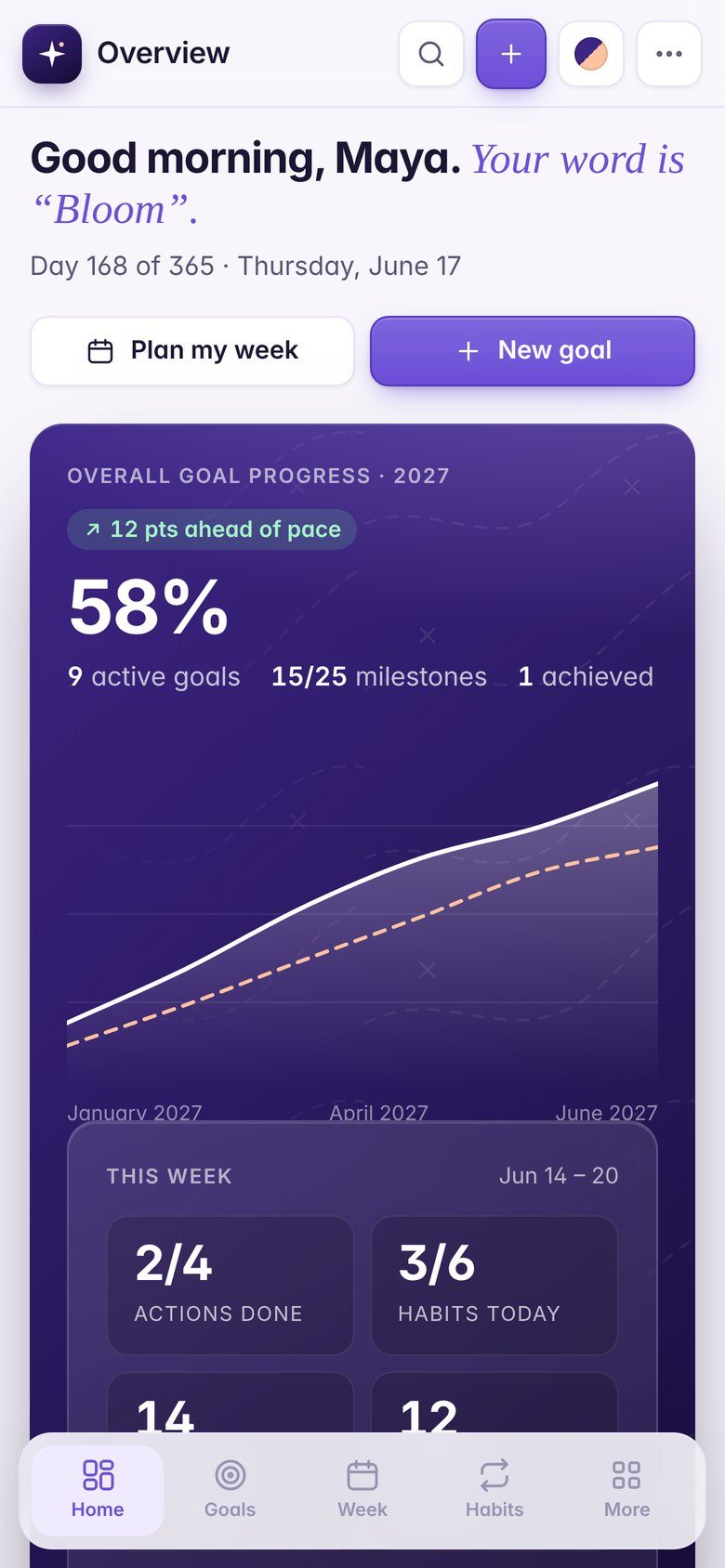
Put your app on your Home Screen.
iPhone & iPad
- 1Open your private app link in Safari (not Chrome or an in-app browser).
- 2Tap the Share button at the bottom of the screen.
- 3Scroll down and tap Add to Home Screen, then Add.
- 4Open the app from its new icon. It runs full screen and works offline after the first visit.
Android
- 1Open your app link in Chrome.
- 2Tap the ⋮ menu, then Install app or Add to Home screen.
- 3Open it from the new icon on your home screen.
Mac & PC
- 1Open your app link in Chrome or Edge.
- 2Click the install icon in the address bar (or menu → Install).
- 3Or simply bookmark the link. The downloaded ZIP also has an offline HTML copy.
Where your data lives
- On iPhone and iPad, a Home Screen app keeps its own storage, separate from Safari tabs. Add the app first, then start entering data.
- Safari may clear data for websites you haven't used in a while. Home Screen apps are exempt from that.
- Private Browsing doesn't keep data.
- Use Backup / Restore inside the app now and then, and to move your data to another device.